User Interface Tutorial
This tutorial covers the controls in the Java applet. Please
read the solution tutorial for detailed information regarding
the mathematical model assumptions and solution technique.
Plotting Controls
Parameters
Solution Type
Computing Concentrations
Data Viewing Options
Color Schemes
Resolution
Data Interrogation
Examining Concentration
Field Data
Cross Sections
Examining Cross Section Data
Display Concentration Data
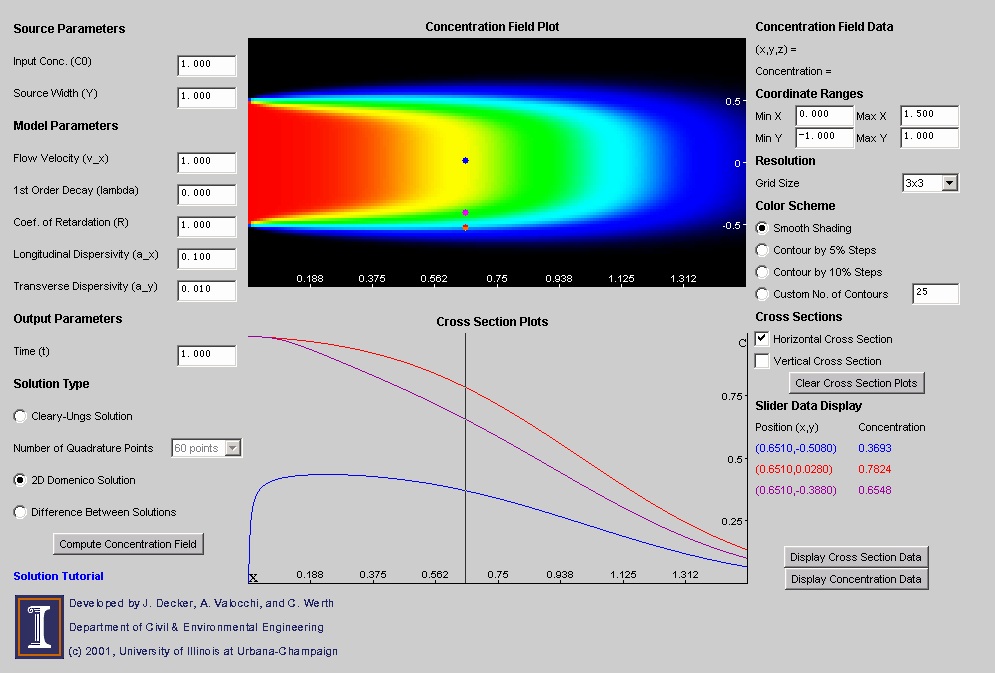
Plotting Controls
These controls are used to input the parameters such as velocity,
dispersivity, source size, and other parameters that are used by the model
to compute the solution. There are slight differences between the
2D and 3D versions. Specifically, the 2D version does not have boxes
for height of the source (Z), depth of plot (z), and vertical dispersivity
(alpha z). Also, the 2D version is the only one that
has a choice of solution types.
Solution Type
The 2D applet has 3 available types of solutions: Cleary-Ungs,
2D Domenico, and Difference Between Solutions. This area is not present
for the 3D version.
- Cleary-Ungs - This uses the Cleary-Ungs solution and Gauss-Legendre
integration. The user can choose from 20, 60, and 96-point quadrature
rules. Using more points can produce better solutions but will take
more computation time.
- 2D Domenico - This is the standard Domenico model adjusted to
reflect an infinitely tall source.
- Difference Between Solutions - This method computes a concentration
field with both the Domenico and Cleary-Ungs solutions and then plots the
absolute value of the difference.
Compute Concentration
Field Button
Press this button to plot a new concentration field with the current
parameter values. The plot is computed using the X and Y ranges shown
in the Coordinate Ranges area.
Data Viewing Options
Color Schemes
The user can choose between smooth coloring and contour coloring.
Smooth coloring gives a nice shading of the concentration field plot with
red representing the input concentration (C0) and black representing
0. Contour coloring colors all points within a specific range of
concentrations with the same color and thus shows isoconcentration lines.
For example, "Contour by 5% Steps" colors the plot with 20 different colors,
and each boundary represents a 5% change in concentration. The "Custom
No. of Colors" selection allows an arbitrary number of contours. To
change to a new number of colors when "Custom No. of Colors" has already
been selected, either click on the radio button again or tab out of the
text box after entering the new value and the plot will update.
When the Color Scheme is changed, the plot already computed is redrawn
to reflect the new color choice. This does
not take into account any changes in parameters made since the plot was
first computed.
Resolution
"Grid Size" refers to the size of the boxes for which each concentration
point is computed. "1x1" is the finest grid and produces the best
picture quality. This also takes the longest to compute since a concentration
is plotted for each pixel. (This means 125,000 pixels are computed.)
A coarser resolution such as "5x5" means a single concentration is computed
for a 5 pixel square box and the entire box is colored for that concentration.
Finer resolution means longer computation.
Data Interrogation
Examining Concentration
Field Data
To see the concentration at a location in the Concentration Field
Plot, move the cursor to that location and look at the data shown in the
Concentration Field Data area. If coarser resolutions are chosen,
the value shown will be the value of the box of the cursor's current location.
However, plotting a cross section at the same point will produce the cross
section for the actual position of the cursor. This is why the constant
coordinate of a cross section does not necessarily agree with the same
coordinate as shown in the Concentration Field Data area.
Cross Sections
To create Cross Sections, choose either "Horizontal Cross Section"
or "Vertical Cross Section" from the Cross Sections area. This will
enable a horizontal or vertical slider bar when the cursor is moved into
the Concentration Field Plot. Move the slider to the desired location
and Left Click the mouse to get a plot of that cross section in the Cross
Section Plots area. The first 5 cross sections will be color coded,
and all selections beyond 5 will be black. Cross sections may be
plotted from different parameter sets. In other words, it is permissible
to plot a cross section, change the model parameters, replot the concentration
field, and plot a new cross section for comparison. Note that
the scale on the cross-section plot changes when a new field is generated, so the user should be careful
when using this feature. The Clear Cross
Section Data button clears all cross sections and their popup windows, if
they are displayed.
Examining Cross Section
Data
Move the mouse across the Cross Section Plots area to see a slider
that allows you to see specific data points. The 5 color coded cross
section plots will be represented in the Slider Data Display area with an
(x,y) position and concentration. Press the Display Cross Section Data
button to see popup windows with data for each curve.
Moving the slider also moves dots in the Concentration Plot Field
area. These dots represent the (x,y) locations that correspond to
where the slider intersects each cross section curve.
Filled dots mean that the cross section curve is from the most recently
computed concentration field. If the curve is a concentration from
a previous set of model parameters, the location will be represented with
an open dot. When multiple cross sections
are plotted at the same or nearly the same locations, the dots may be difficult
to distinguish. (How do you draw a filled and unfilled dot
on the same location and convey that intent?)
Display Concentration Data
This button will display a new window with all the concentration values computed at each
grid point. This data could be copied into other applications (e.g. Excel).
For fine grid resolution this could take some time and the may result in
a large display that may be difficult to read.
Last Modified: Jan 15, 2003
Pin Zhou